You’ve downloaded ZumFlo. Great. In this guide you set the app up properly in one go, so that afterwards you can close every workday in a few minutes - and see exactly what’s yours. No account needed; you just start.
ZumFlo works best when you set it up once to match how your business works: which host(s) you work with, which services and products you offer, and how your payments come in. That’s Part 1 below - mostly a one-off job. After that, your bookkeeping moves along with your business in a few natural rhythms: every workday you fill in your daily log, every month you settle up with your host, and every quarter (and at the end of the year) you prepare your accounting file. Along the way, the Insights tab helps you look ahead and adjust course.
You don’t have to read everything at once. Lay the foundations first; you can read through the daily routine - the heart of ZumFlo - at your leisure afterwards. Work at several salons? Then you set up your own agreements per location, and ZumFlo keeps everything separate.
Part 1 · One-off setup
Set up your host and agreements
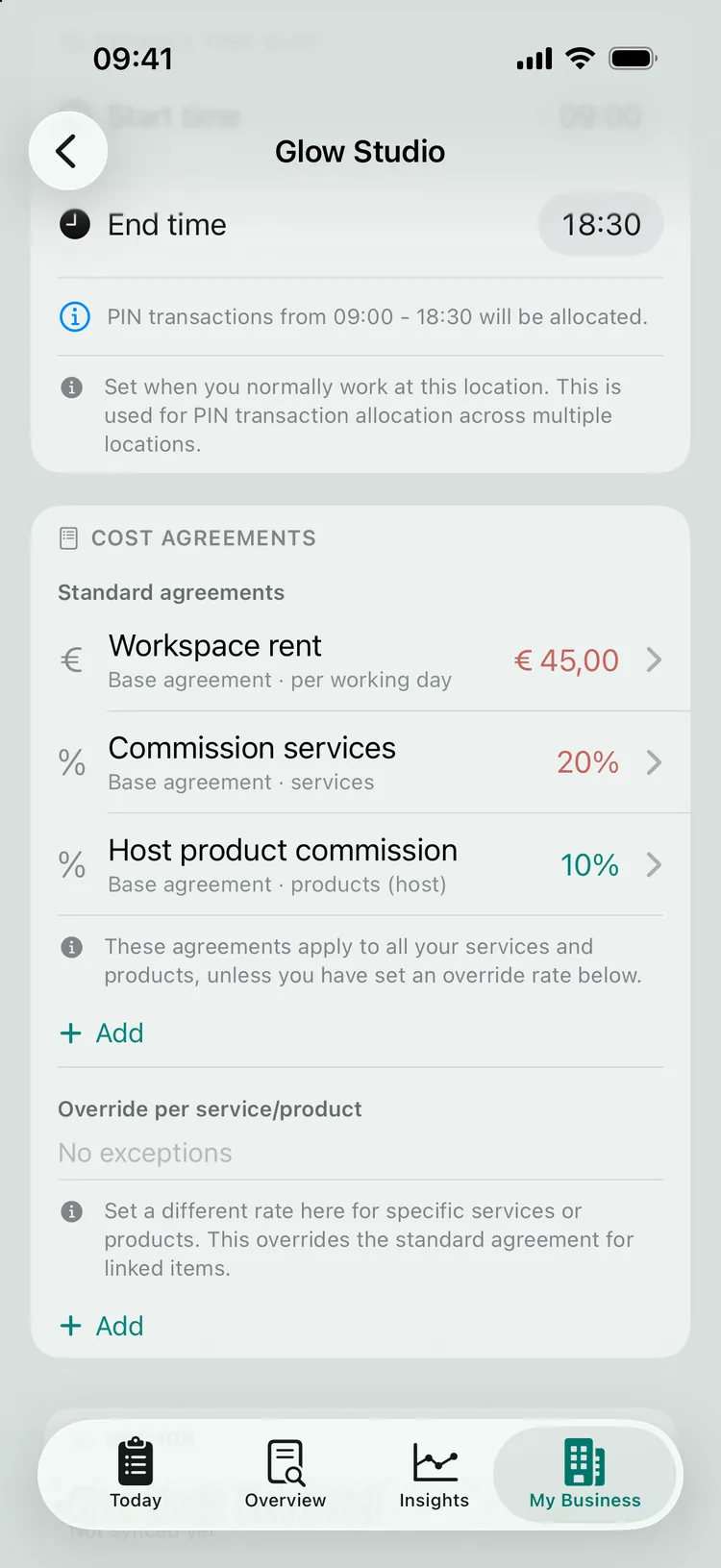
A host is the salon, studio or practice where you rent a workspace. Add your host and record the financial arrangement exactly as agreed with the salon owner. There are roughly three earning models:
Chair rental - a fixed amount per workday. Commission - a percentage of your revenue (sometimes only on services, sometimes on products too). Hybrid - a combination, for example a lower day rate plus a small commission percentage.
For each host, you record what the financial arrangement looks like.
One-off · services
Add your services and products
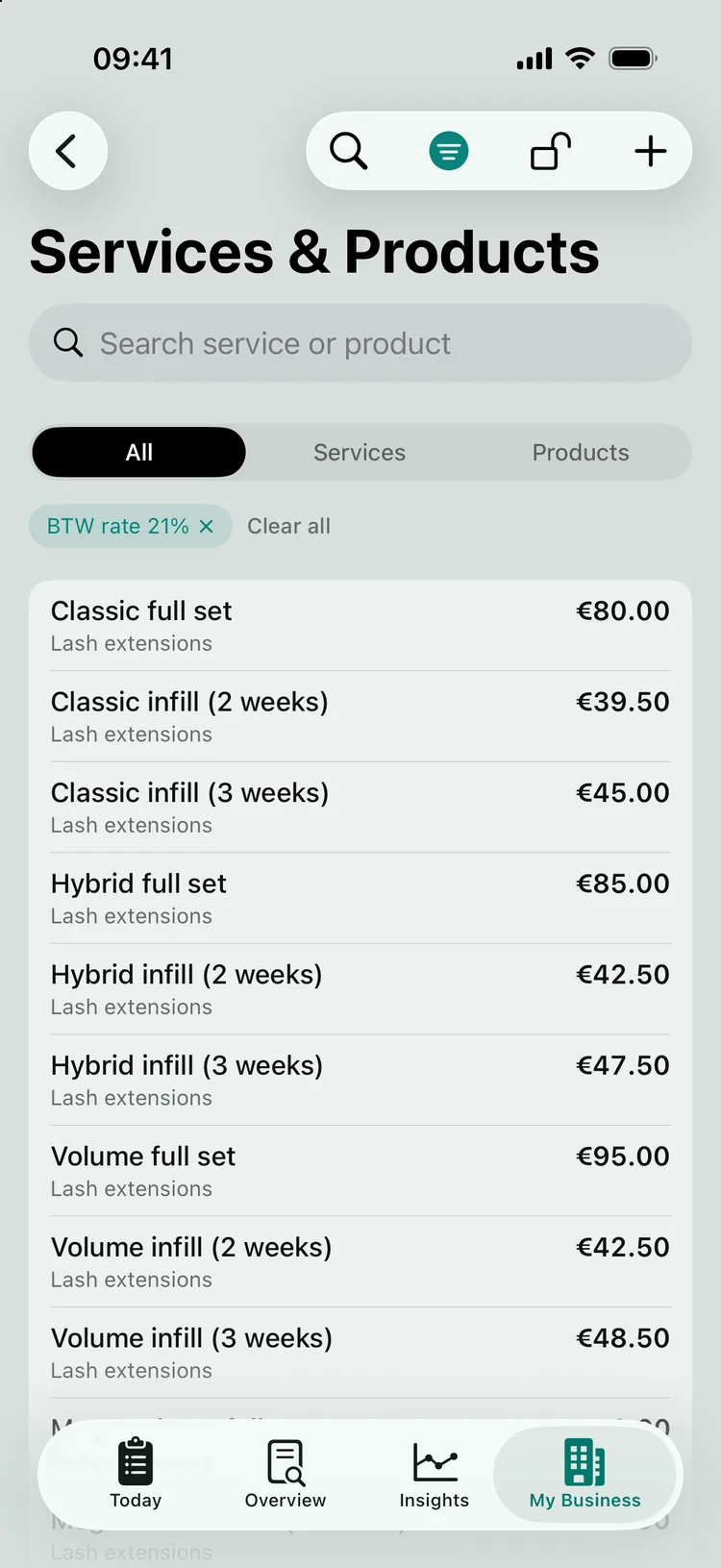
Set up your services and products with the right price and the right BTW (Dutch VAT) rate. You only need to do this once; after that you pick them with a tap when filling in a daily log. No need to type them all in: ZumFlo can import your price list automatically - look it up online or scan your price card - and you choose what to add. It pays to be precise here: the prices and BTW rates you set flow through your entire calculation - your net result, your BTW reserve and your settlement with the host.
Watch out for the distinction that keeps your settlement clean later on: own products you sell for your own account, whereas host products (money that isn’t yours) are a pass-through item - that money belongs to the salon and you pay it on. ZumFlo keeps this separate, so host products never count as your revenue. The right BTW rate differs per profession; read how VAT works with chair rental.
Set them up once; after that you pick them in a daily log with a tap.
One-off · payments
Connect your payments
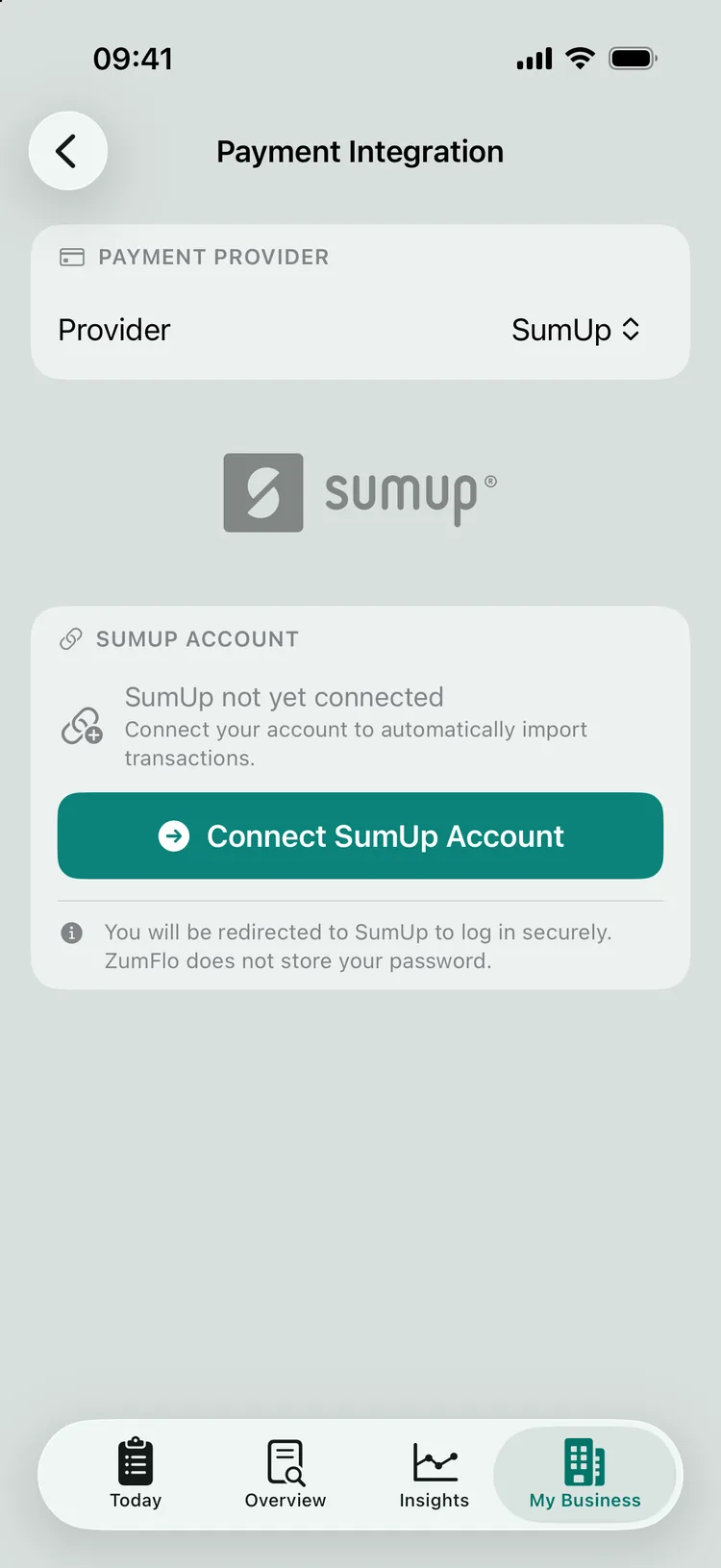
Do you use a card terminal from SumUp or PayPal POS? Then connect it to ZumFlo. Your card payments - and the tips that go with them - are then fetched automatically, so you don’t have to type them over by hand. Step by step: connecting SumUp.
Using a different card payment provider? No problem - ZumFlo also works fully on its own. You then enter your payment methods by hand. The connection is a convenience, not a requirement.
Once connected, your card payments and tips come in automatically.
One-off · calendar PRO
Connect your calendar
With the calendar connection, your daily log fills itself with that day’s appointments in advance - all you have to do afterwards is add the amounts and payment methods. This is where new users sometimes get stuck, so let’s be precise:
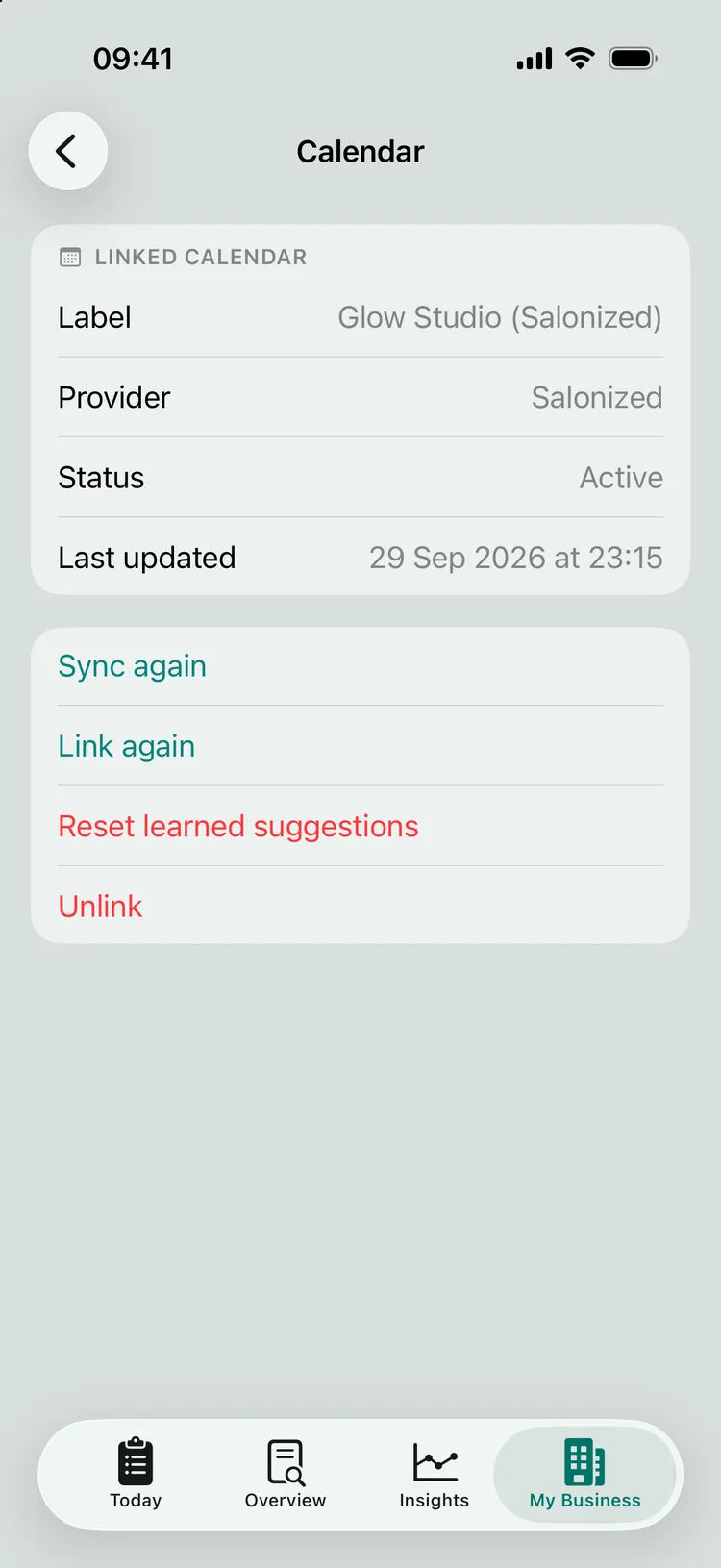
The connection works with a shared, read-only calendar link (iCal) that your host provides and that contains only your own appointments. You paste that link into ZumFlo itself: in My Business you open your host’s location and, on the Calendar card, tap “Link calendar”. ZumFlo fetches the calendar directly from your device and reads your appointments read-only; no access to your phone’s calendar is requested. The link stays on your device. Your appointments - including any client names - are stored in your ZumFlo data, on your device and in your own iCloud; nothing goes to a ZumFlo server. The full setup guide - including what your host does in Salonized - is in connecting your calendar to your bookkeeping.
Besides pre-filling your daily log, the calendar gives you a forecast of your occupancy and your busy and quiet days. What exactly that forecast shows, you can read further down in what Insights shows you.
Your appointments pre-fill your daily log.
Every workday · the heart of ZumFlo
Filling in your daily log and closing the workday
You did the previous steps once. This is the part you do every workday - and what ZumFlo was built for. It sounds like a lot, but in practice you’re usually done in a few minutes, because the app has already prepared most of it for you. We’ll walk through the routine calmly, so you know exactly what happens.
The appointment is the starting point - and belongs with a payment
In ZumFlo, a workday revolves around your appointments. The principle is simple: every appointment should ultimately be linked to a payment. An appointment without a linked payment is still an open item - the work has been done, but the money isn’t anywhere yet. And a payment that came in without a service is still undistributed money. As soon as everything is linked, your day adds up: what you received is distributed exactly over what you did. That linking is the routine - and the nice thing is that you mostly check, rather than calculate.
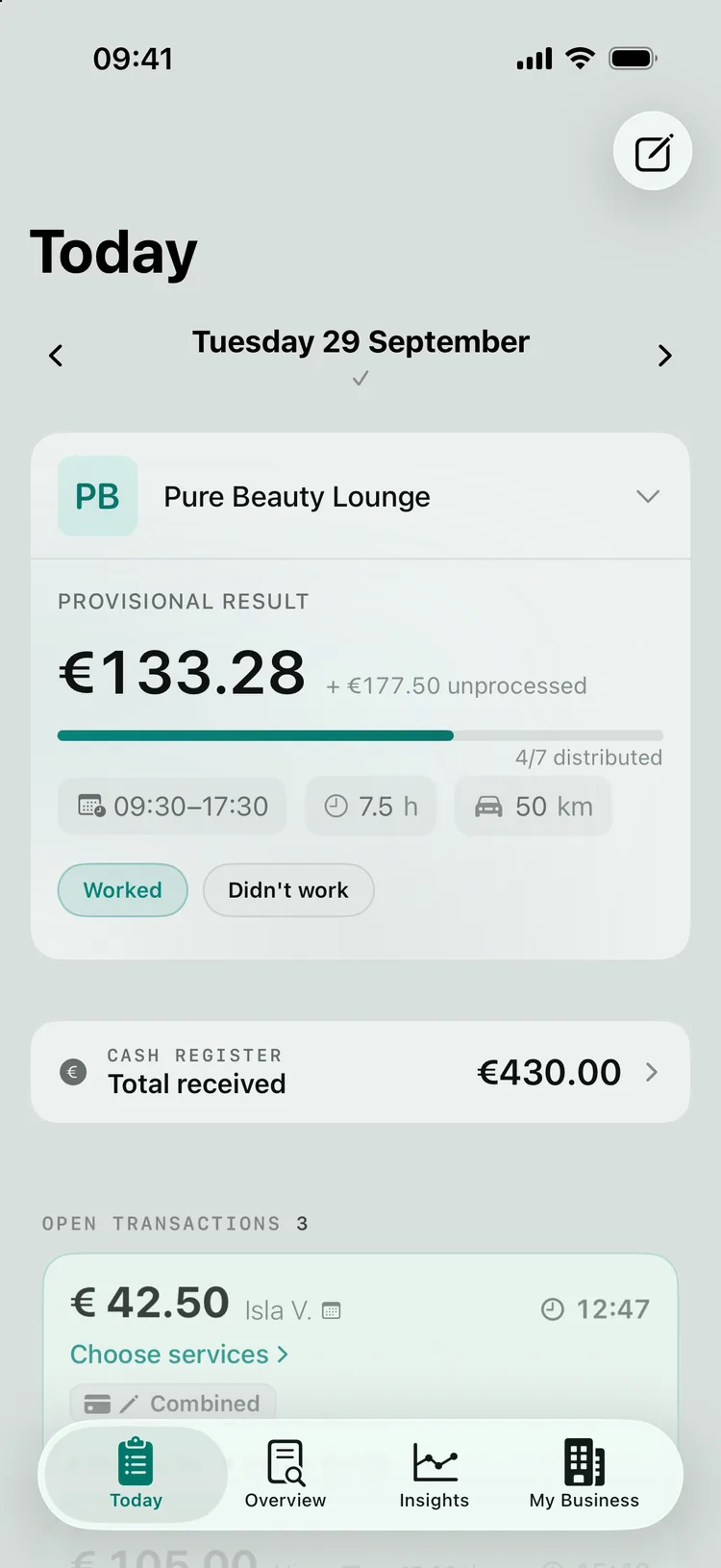
The card at the top of your workday is your fixed anchor point: all day long it keeps track of what still needs linking.
Your cash register: where your money comes together
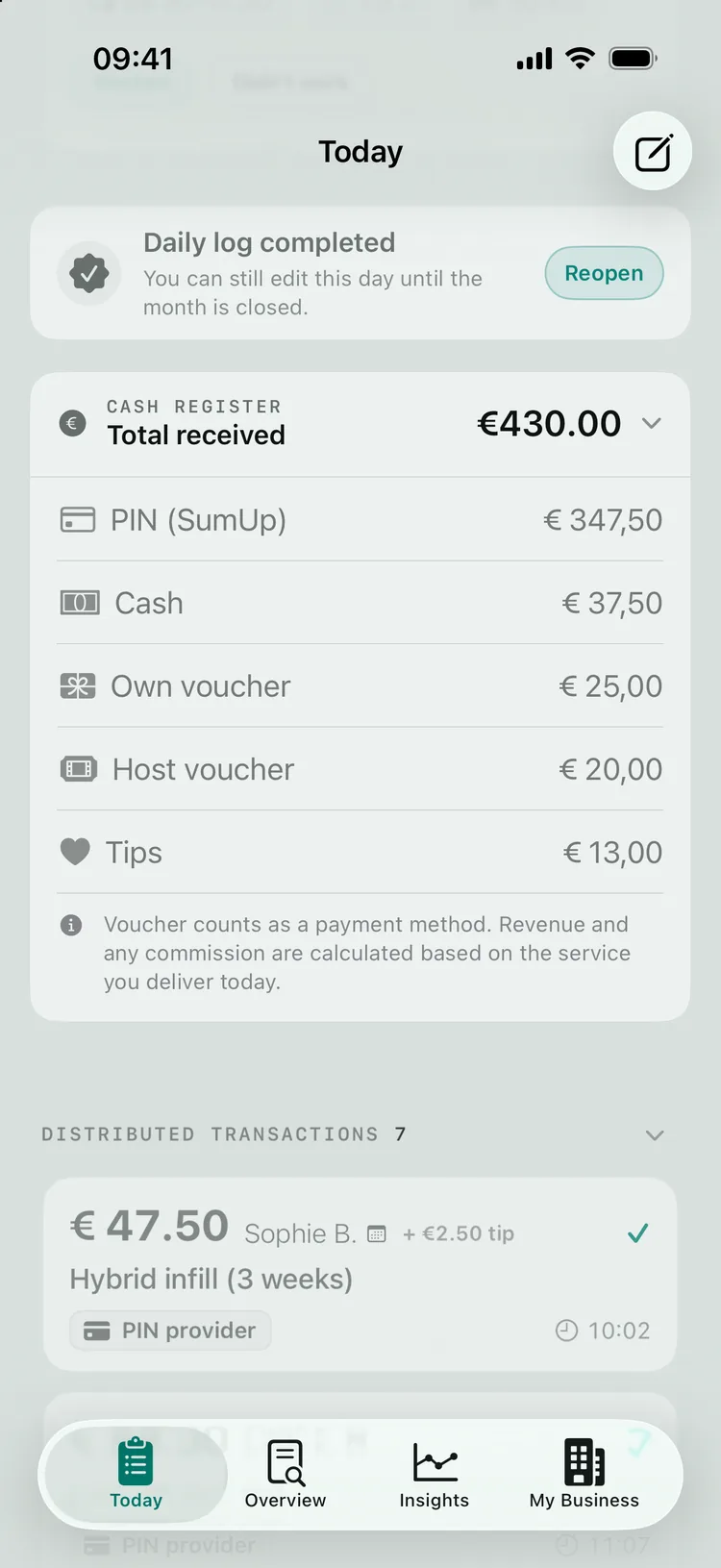
Your cash register - the CASH REGISTER section in the app - is the place in your workday where all payment methods come together: card, cash, vouchers (your own gift card or your host’s) and tips. Two kinds of transactions come in:
Detected automatically. If you’ve connected SumUp or PayPal POS, your card payments appear in your daily log by themselves - with amount, time, card type and the tip the client added on the terminal. You don’t have to type anything over; they’re already there, ready to link.
Manual. Cash and vouchers leave no digital trail - only you know about them, so you enter them in your cash register yourself. If a single payment is missing, or someone came in without an appointment, you add it yourself with “+ Manual”.
All of the day’s payment methods come together in your cash register - automatic and manual.
From payment to service: confirming instead of calculating
Every detected transaction really asks just one question: what was in this? In the past you had to puzzle that out yourself - which services add up to this amount? ZumFlo turns it around: you start from the payment, which is still fresh in your memory, and confirm what belonged to it.
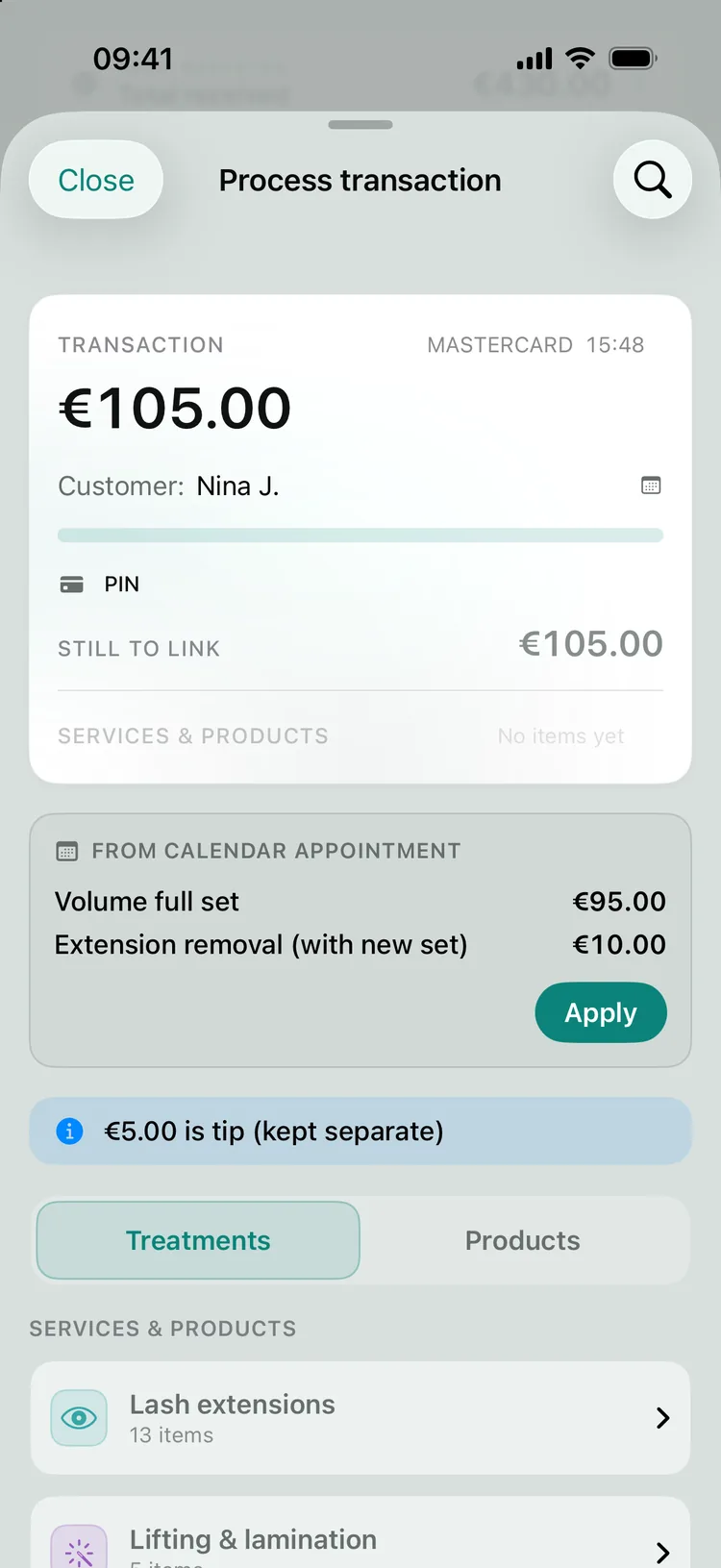
If you’ve connected your calendar (Pro), the app does the groundwork. ZumFlo puts that day’s appointments side by side with your detected card transactions and matches them on time and amount wherever it can. From the appointment it also derives the service and has it ready for you. In most cases, all you then need to do is confirm the link - a single tap.
If one client booked several services back to back, together they form one calendar block for that client. ZumFlo recognises such a block automatically and, by default, links the total amount to the transaction that fits that time slot - you don’t have to match the individual services one by one. Here too: if the block is right, you’re done in one go.
How confident ZumFlo is determines how you confirm. If appointment and amount line up neatly, confidence is high and you swipe the transaction to approve it in one move. If it’s likely but not certain, you tap to review the suggestion before confirming. If there’s no reliable suggestion, you choose the service yourself from your list - your recently used services are at the top, so that’s quickly done. ZumFlo would rather not guess than confidently suggest the wrong service. Open transactions, by the way, are simply your to-do list - not a list of errors, and the app never uses alarming language.
When confidence is high, you swipe a transaction to approve it in one move.
When you step in yourself
Not everything matches by itself, and that’s how it should be - you know the day, the app only knows the signals. In these situations you step in yourself:
Part was paid in advance. The client had already paid a deposit or used a gift card at the salon, so the detected card amount is lower than the total from the appointment. You make up the difference with the payment method used for that part.
The client paid cash. Cash doesn’t trigger a terminal notification, so there’s nothing to detect automatically. You enter the amount in your cash register and link it to the appointment.
A different payment method. Paid via Tikkie, a bank transfer or with a voucher? You enter it as a manual payment or as a voucher, and link it to the appointment in the same way.
A last-minute change of service. The appointment said “cut”, but it became “cut and colour”. When linking, you simply adjust the service. The calendar is your starting point, not the truth - you have the final say.
No appointment. A walk-in or a payment that wasn’t in your calendar you add separately with “+ Manual” and link to the right service.
Combined transactions: the distribution process
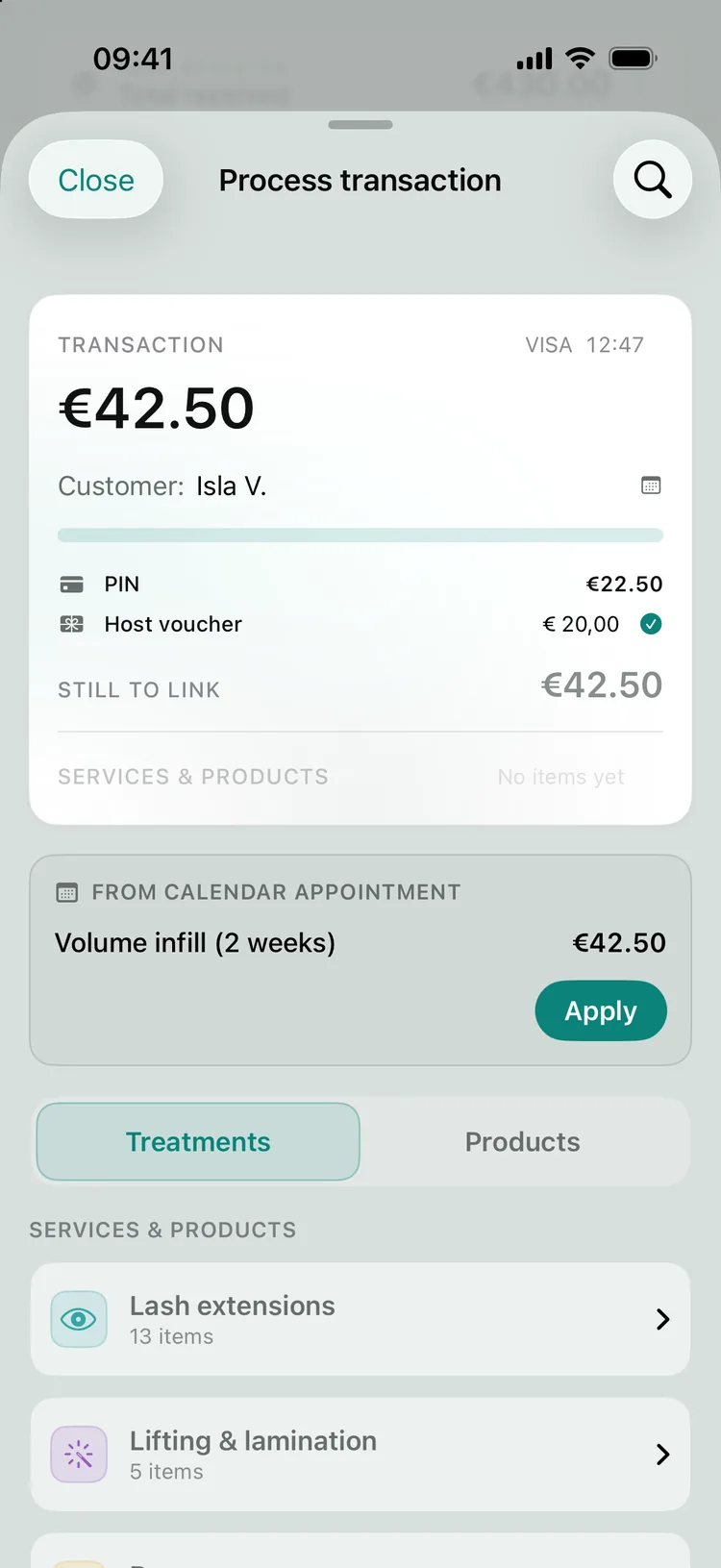
Sometimes one payment is made up of more than one thing, or paid with more than one payment method. The classic example: a €80 service, of which €50 paid by card and €30 in cash. ZumFlo doesn’t see the difference as an error, but as a distribution. The €50 card transaction leaves a “remainder” of €30, and you link that remainder to cash. That way one moment is neatly split across two payment methods, without anything being counted twice.
You don’t have to puzzle tips out of an amount yourself, either. ZumFlo reads your card transactions and recognises exactly which payment included a tip; that tip is automatically set aside - 0% BTW and outside your revenue. What’s left is the amount for your services, and it matches exactly once you’ve selected the right services and any products. In this way ZumFlo strictly enforces one rule: every service, every tip and every part of a payment counts exactly once - and that’s why your day always adds up.
You split a combined payment across two payment methods - the remainder shows the way.
Closing the workday
As soon as there are no open transactions left and what you received equals what you’ve linked, the “Close workday” button appears. That’s the sign that your daily log balances: all payment methods together - card, cash, vouchers, plus tips - add up exactly to the services and products you’ve done. If there’s a deliberate difference (you know, for example, that an amount belongs elsewhere), you can explain it; ZumFlo doesn’t force anything and keeps the tone calm.
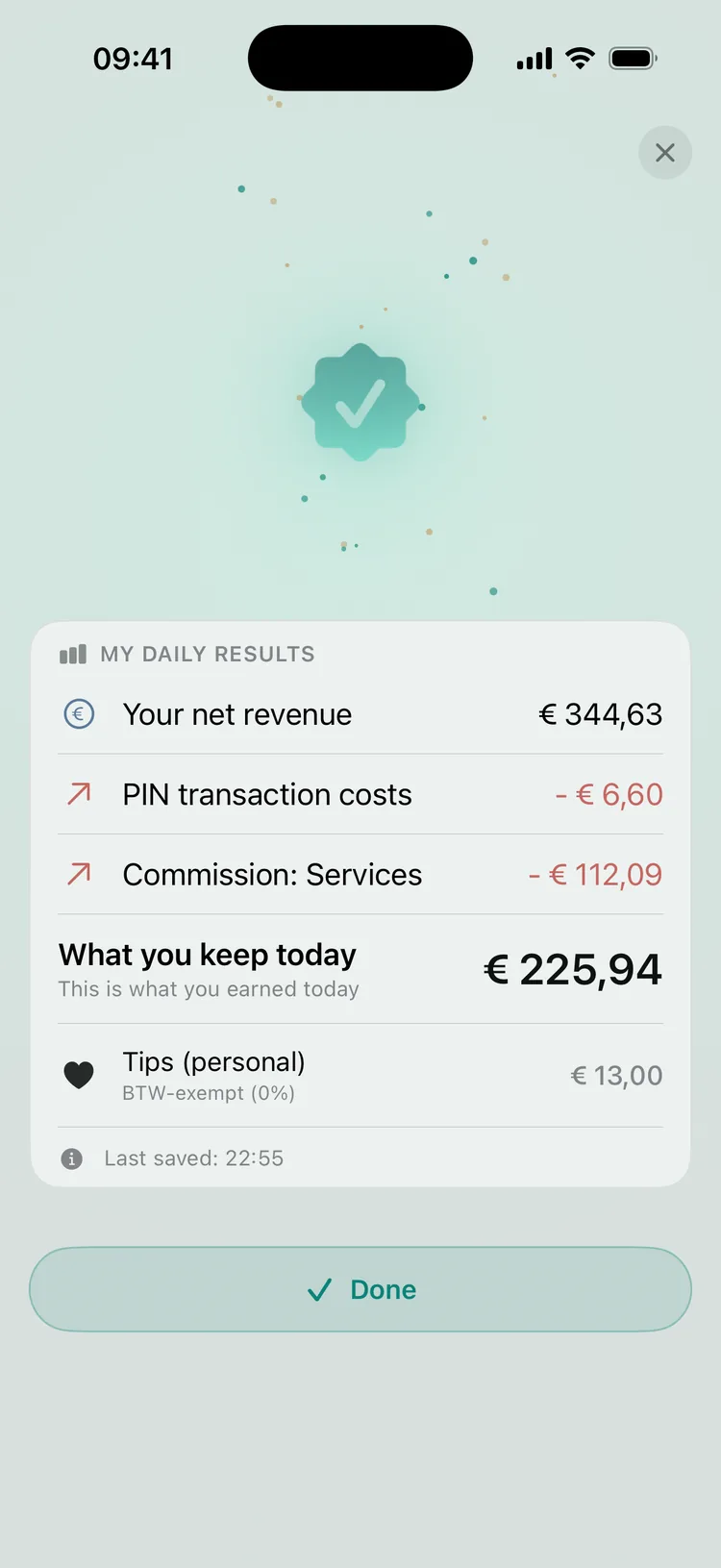
Straight after that you see your net result for the day: what’s yours, what goes to your host, and how much you set aside for BTW. Want to understand exactly how that step from gross to net works? Read how to calculate your net income. And if another card payment comes in later that evening - the 19:45 client who only paid at 21:15 - your day simply reopens by itself; you link that one transaction and close the day again. Nothing gets lost.
Once you close the day, you immediately see your net result for the day.
What ZumFlo does and doesn’t do automatically - and why
ZumFlo takes this off your hands automatically: detecting your card payments (amount, time, card type and tip), reading your appointments from the connected calendar, deriving the service from the appointment title, and matching appointment and payment whenever that can be done with certainty.
Deliberately not automatic - and for good reason. Cash and vouchers leave no digital trail; only you know they came in, so you enter them yourself. Discounts and deviating payments break the match on amount - then ZumFlo would rather not guess and lets you confirm, because a confidently wrong suggestion costs more trust than no suggestion at all. Your client data stays with you - on your device and in your own iCloud, never on a ZumFlo server; matching is done on time, amount and service, not on who the client was - a deliberate privacy choice. And whether a day is a workday at all is not something the app decides for you: schedules change, there are days off and spontaneous clients. So you won’t get “you forgot three days” notifications - an empty day is simply an empty day.
The reward is in the sum total: the more completely you keep up your days, the easier your month-end closing becomes. That’s the natural incentive - no pressure from the app, just less work at the end of the month.
Does this seem like a lot? We get it - on paper it quickly looks complicated. In practice it all fits together very logically, and you’ll notice that soon. Once you’ve closed a few daily logs, it almost runs by itself: with little effort you keep your own books, while still fully tracking a collaboration that can be quite complex because of the different money flows - and you can account for everything afterwards, down to the day. And the longer you use ZumFlo, the more insight it gives you into your revenue, what you pay your host and where your business is heading.
Every month
Settle up with your host
At the end of the month, your individual workdays become one settlement per host. The aim isn’t just “paying what you owe”, but a settlement that can be checked and that you and your host both stand behind. In short, it goes like this:
1. First check that your month is complete. Open the Overview tab and go through your daily logs. Don’t just check whether all workdays are there, but also whether they’re actually closed and not still “open”. An open day hasn’t been fully counted yet; close it first, and your monthly total will be right.
2. Generate your period overview and share it with your host. From your daily logs, ZumFlo automatically builds your specification for that month, per location - including whatever went outside the salon’s system (cash, gift cards, deviating services). Your host simply receives a PDF, ready to go through together.
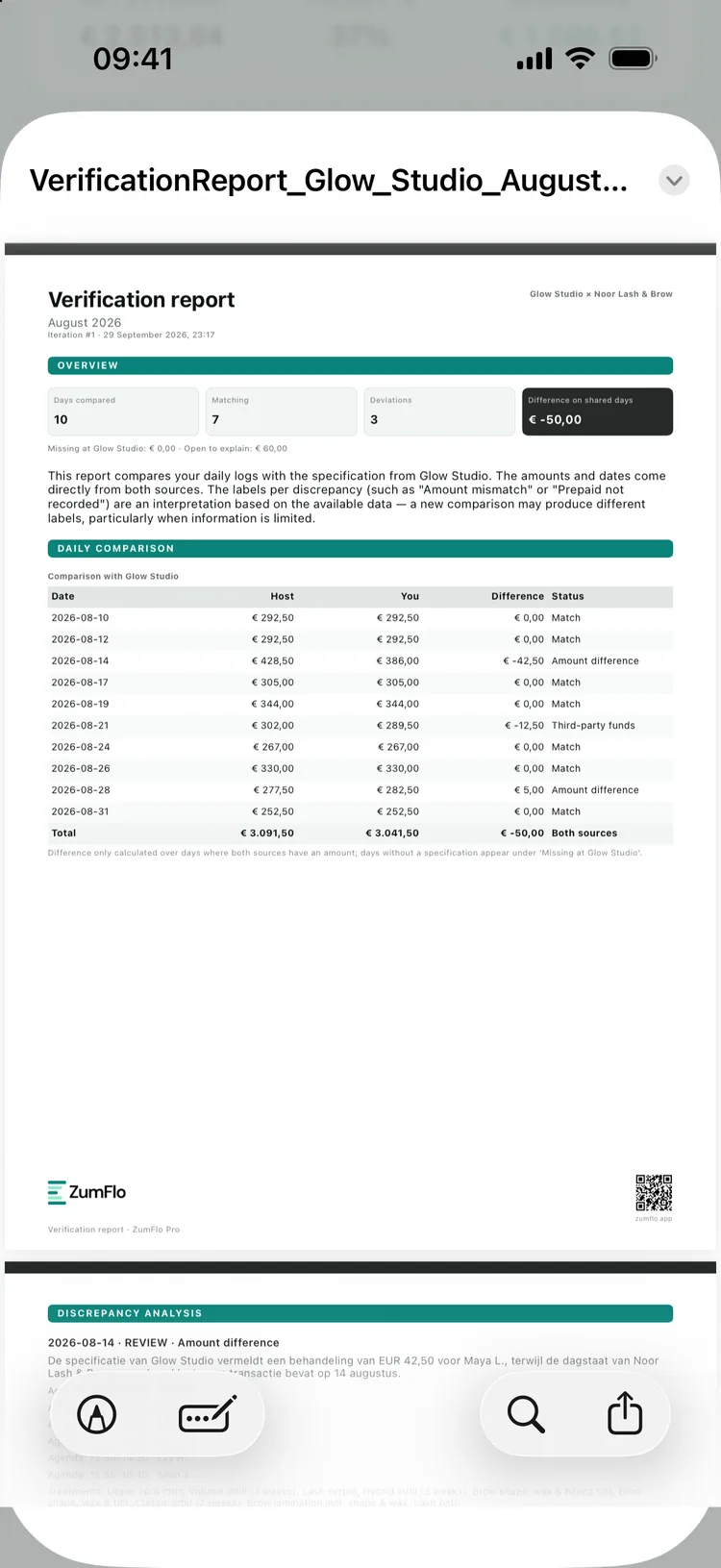
3. Request your host’s specification and compare (Pro). You open the settlement with your host - in Overview via Host Overview and then your location - and go through the steps Host specification and Comparison. ZumFlo puts your figures side by side with the salon’s and produces a verification report: how many days match, where they differ and what the total difference is. The comparison runs on your device and with pseudonymised data - client names never leave your device.
4. Explain the differences. The report is deliberately neutral: it states where and why figures differ - an advance payment that only appears on one side, a product sale (host products) that the salon counts as revenue, a tip that only one of you includes - without pointing fingers. That way you immediately have a document to discuss, not an accusation.
5. Discuss, reach agreement and close. Go through the report with your host. If a difference is valid, you adjust your daily log and run the comparison again - in a few rounds you work towards figures you both stand behind. Then you lock that month’s daily logs with the Lock daily logs step in the settlement: the figures are fixed. If you use Moneybird, you can have the closed month booked as a final step.
Your specification and the salon’s, side by side, day by day.
This is the short route. The full month-end closing step by step - with all the screens, the comparison and the locking - is in month-end closing. What you need to know about the settlement conceptually, you can read in the settlement explained.
Every quarter & every year PRO
Prepare your accounting file
Where the month revolves around your host, the quarter revolves around your own tax picture and your accountant. Around filing time, ZumFlo bundles your figures into an accounting file: your revenue and BTW neatly broken down, plus your registered purchase invoices with their BTW - ready to share with your accountant in one go, no shoebox required.
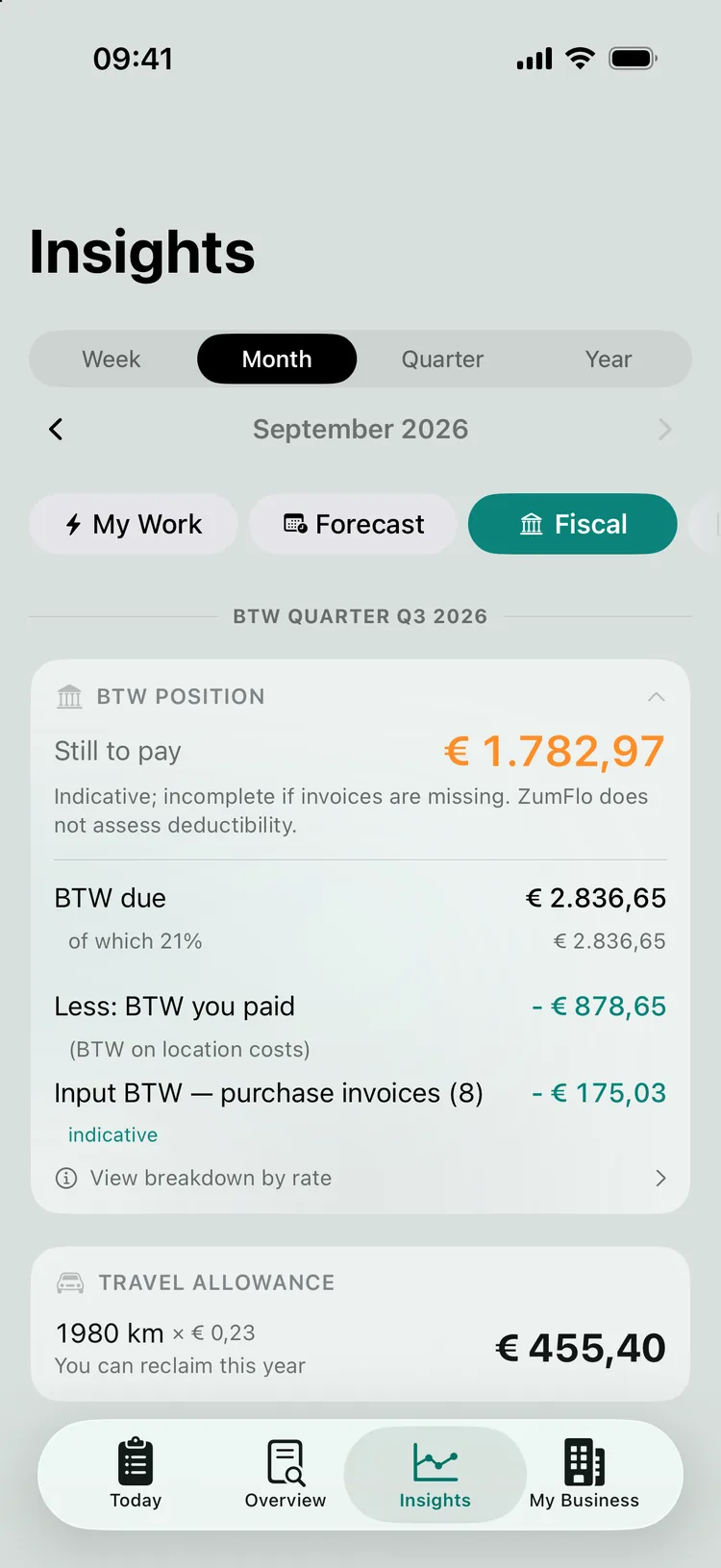
It’s all about your BTW position: the BTW you owe on your revenue, minus the input BTW on your business costs (from your settlement and from your own purchase invoices). The more completely you keep track of your receipts, the sharper that picture - which is why it pays to scan and track them throughout the quarter. Important, and to be honest about it: ZumFlo is not accounting software. The figure is indicative - it doesn’t assess deductibility; you decide that together with your accountant.
At the end of the year, ZumFlo bundles the same structure into an annual overview - the same file, but covering twelve months - as the starting point for your annual accounts and your income tax return. You share that with your accountant too.
Your estimated BTW position - more complete the more you keep track of your receipts.
What exactly goes into the file and how to close the quarter and the year, you can read in quarter- and year-end closing.
Along the way
What Insights shows you
Besides recording, ZumFlo helps you look ahead and adjust course. That lives in the Insights tab - not separate calculations, but your own figures handed back to you in a way that’s actually useful.
Forecast. Based on your connected calendar you see your occupancy and your busy and quiet days - and, perhaps most useful of all, what your free hours mean in potential revenue. That way an empty slot in your calendar becomes an amount, and you know where promotion or new bookings pay off. More on this in the look-ahead and how it helps you.
Fiscal. Here you’ll find your estimated BTW position per quarter, which becomes more complete as you keep track of your purchase invoices - exactly the figure you use to prepare your quarterly BTW return. It remains an indication, meant to support you (and your accountant), never as final. That way you know roughly where you stand all year round, instead of only when you file.
FAQ
Frequently asked questions about getting started
What do I do every day, every month and every quarter?
Every workday you fill in your daily log: you link your payments to your services and close the day. Every month you settle up with your host using a settlement specification. Every quarter you prepare your accounting file for your accountant, with your BTW position and your purchase invoices. The setup - host, services, payment methods, calendar - is a one-off job.
Do I need an account to get started?
No. You download ZumFlo, open the app and get going straight away. Your data is stored locally on your device and synced through your own iCloud - no separate account needed.
How long does filling in a daily log take?
Usually a few minutes. With a card payment connection your card payments and tips are fetched automatically, and with the calendar connection ZumFlo already fills in the service - you mostly just confirm. You add cash, vouchers and exceptions yourself.
How do I connect my calendar?
The calendar connection (Pro) works with a shared, read-only calendar link (iCal) that your host provides and that contains only your own appointments. You paste that link into ZumFlo at your host’s location (My Business, Calendar card, Link calendar); ZumFlo reads your appointments read-only and pre-fills your daily log. No access to your phone’s calendar is needed. The link stays on your device, and your appointments are stored in your ZumFlo data on your device and in your own iCloud - not on a ZumFlo server.
What does ZumFlo cost?
You can try ZumFlo free for 14 days at Pro level. During the trial, lower limits apply to the AI features: 1 settlement check per location per month and 10 scans in total. After that you choose Standard or Pro, as a monthly or annual subscription. Standard costs €9.95 per month or €99 per year and works with up to 2 work locations; if you have more, the extra locations become read-only. In both plans you can import your price list automatically (look it up online or scan your price card) and create reports in 10 languages. Pro costs €18.95 per month or €189 per year and adds, among other things, the calendar connection with forecast, the settlement check against your host, receipt and purchase invoice scanning, the Moneybird connection, accounting exports and the accounting file, exception rules, stepped pricing and unlimited work locations. With Pro you get 3 settlement checks per location per month. After the trial you have 25 scans per month, shared across receipts, invoices, price cards and online price-list lookups.
Ready to get started?
Set up ZumFlo once to match how your business works, and let your bookkeeping keep pace with your workday, your month and your quarter. You see exactly what’s yours - net, after everything.
ZumFlo helps independent professionals who rent a chair or workspace keep track of their daily revenue, settlement and net result.