Step by step
How to set it up - using Salonized as an example
The connection consists of three blocks. Your host (the salon owner) does blocks 1 and 2; you, as the chair renter, do block 3. If you work with a different booking system that provides a calendar link (Treatwell, Booksy, Fresha and similar), the idea is the same - your host shares a link with only your appointments, and you paste it into ZumFlo. In that case, check that system’s own help pages for how to export an iCal link.
What you need beforehand
Your host needs: a Salonized account with the manager role, a Google account (Gmail) and access to Google Calendar with that same account. You need: ZumFlo with Pro (or during the trial period) and the iCal link your host sends you in block 2.
Block 1 · Your host, in Salonized
This requires the manager role.
- Go to Settings → General → Integrations.
- Under Google Calendar: click Enable and grant permission.
- In the Salonized → GCal section: choose “Separate Google calendars per employee”.
- Next to your name: click “Create a new calendar: Salonized – [name]”.
- Click Save. The first sync takes about 15 minutes.
Don’t tick: “Show Google Calendar events as absences in Salonized.” That is a reverse connection that affects the salon’s bookability - you don’t need it here.
Salonized help articles: integrating Google Calendar, sharing a separate calendar per employee, and why you don’t turn on the absence sync.
In short, for your host: in Salonized, go to Settings → General → Integrations, enable the Google Calendar connection and choose separate Google calendars per employee. Then, in Google Calendar, your host shares the secret iCal address of the calendar with your name - only yours. Nothing more is needed on the salon’s side: you don’t get access to Salonized itself or to your colleagues’ calendars.
Block 2 · Your host, in Google Calendar
Your host does this in the Google account that was connected in block 1.
- Open Google Calendar (calendar.google.com).
- In the list on the left, find the calendar “Salonized – [name]”.
- Hover over it → click the three dots → “Settings and sharing”.
- Scroll to “Integrate calendar”.
- Copy the “Secret address in iCal format” (a link ending in
.ics).
- Send that link to you (by email or WhatsApp).
Tip: don’t share this link with anyone else - it gives access to the appointments.
Block 3 · You, in ZumFlo
You link the calendar directly in ZumFlo, at your host’s location. A subscription in your iPhone’s Calendar app is not needed.
- Copy the .ics link your host sent you.
- In ZumFlo, open My Business and tap your host’s location.
- On the Calendar card, tap “Link calendar”.
- Paste the link under Calendar link, choose Salonized as the Provider (or Other for a different system) and optionally add a label, for example the salon’s name.
- Tap Link. ZumFlo fetches the calendar straight away and shows how many appointments it found. If the link is wrong, you see that immediately - for example “Calendar not found - check the link”.
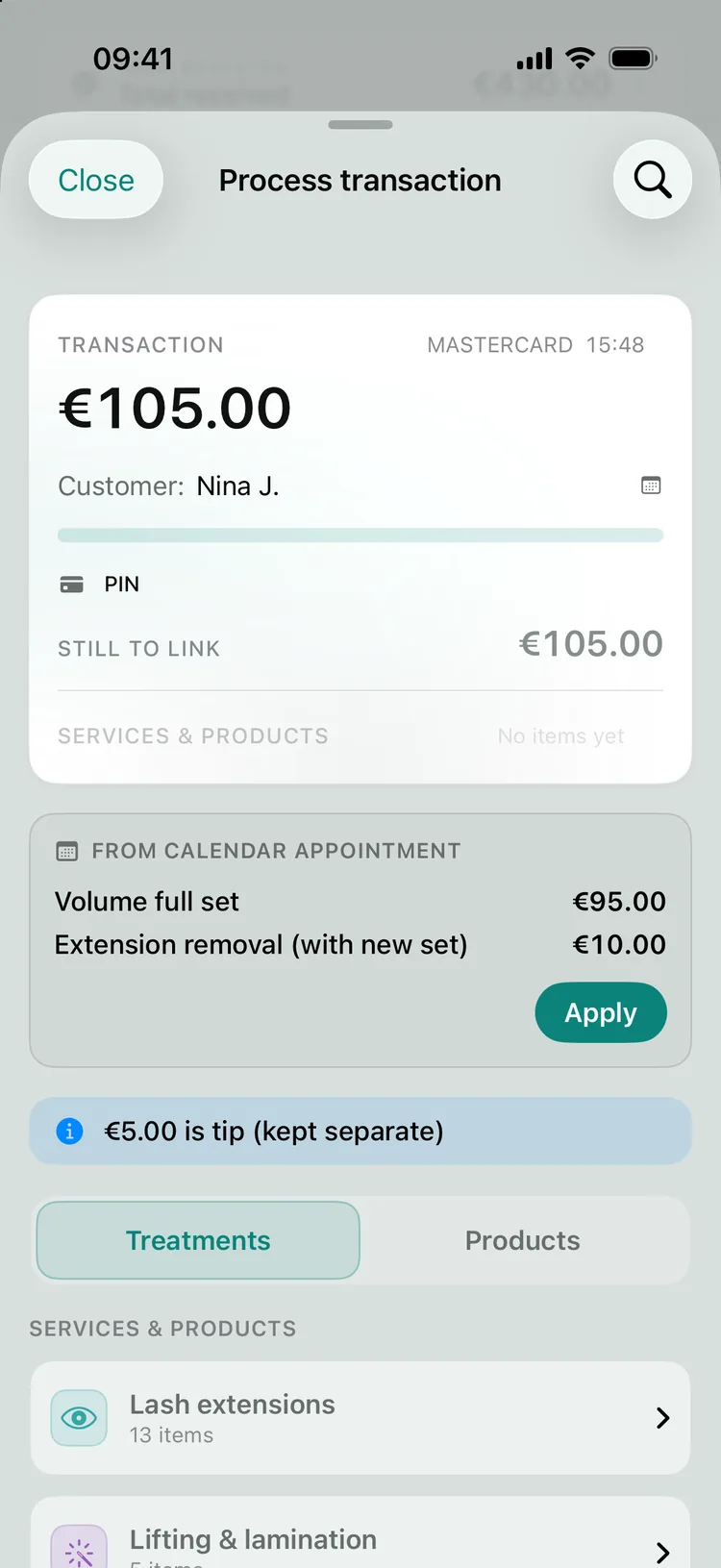
The first time, you link an appointment name (for example “Haircut” or “Biab”) to one of your services, and you mark noise such as “Lunch” or “Break” as not relevant once. After that, ZumFlo recognises those appointments by itself.
Good to know
The connection is one-way: appointments flow from your booking system through the calendar link to ZumFlo, never the other way round, so you can’t change anything by accident. ZumFlo updates your appointments when you open the app; from the linked calendar you can also tap Sync again yourself. Appointments from before you switched it on are not loaded retroactively - only new appointments sync. Individual, dated client appointments sync normally; unusual repeat patterns (yearly, or “every last Friday”) aren’t always supported.
New device? The calendar link itself is only stored on the device where you linked it, in the secure iOS keychain, and is not carried over through iCloud. On a new iPhone you therefore link it again with Link again. Your imported appointments and the mappings you already made are kept, and existing appointments are not imported twice.