Your client pays by card, and moments later the payment is already in your daily log - with amount, time, card type and tip. No retyping receipts, no adding up at the end of the day. Here’s how to connect your SumUp terminal to ZumFlo, and what happens to your card payments after that.
With the SumUp connection, ZumFlo fetches your card payments automatically. They appear in your CASH REGISTER in Today, on the right workday, ready to link to your services. The tip your client added on the terminal is set aside straight away. All you do is confirm what was in each payment.
Connecting takes about a minute and you only do it once. The connection is included in both ZumFlo Standard and Pro. Using PayPal POS instead of SumUp? That works the same way - see further down.
Just getting started with ZumFlo? Getting started covers the connection briefly as part of your first setup. This page tells the whole story.
Before you start
What you need
A SumUp account, with your login details to hand. It’s the account your terminal runs on and where your card payments come in.
A host (location) in ZumFlo. Your card payments land on a workday at a location. As long as you don’t have an active location yet, Payment integration in the settings is disabled. If you haven’t added your host yet, do that first - you can read how in the My Business tab.
Step 1
Open Payment integration
In ZumFlo, go to My Business and tap the gear icon (⚙) for Settings. The Integrations card contains Payment integration; as long as nothing is connected, it says it hasn’t been set up yet. Tap it.
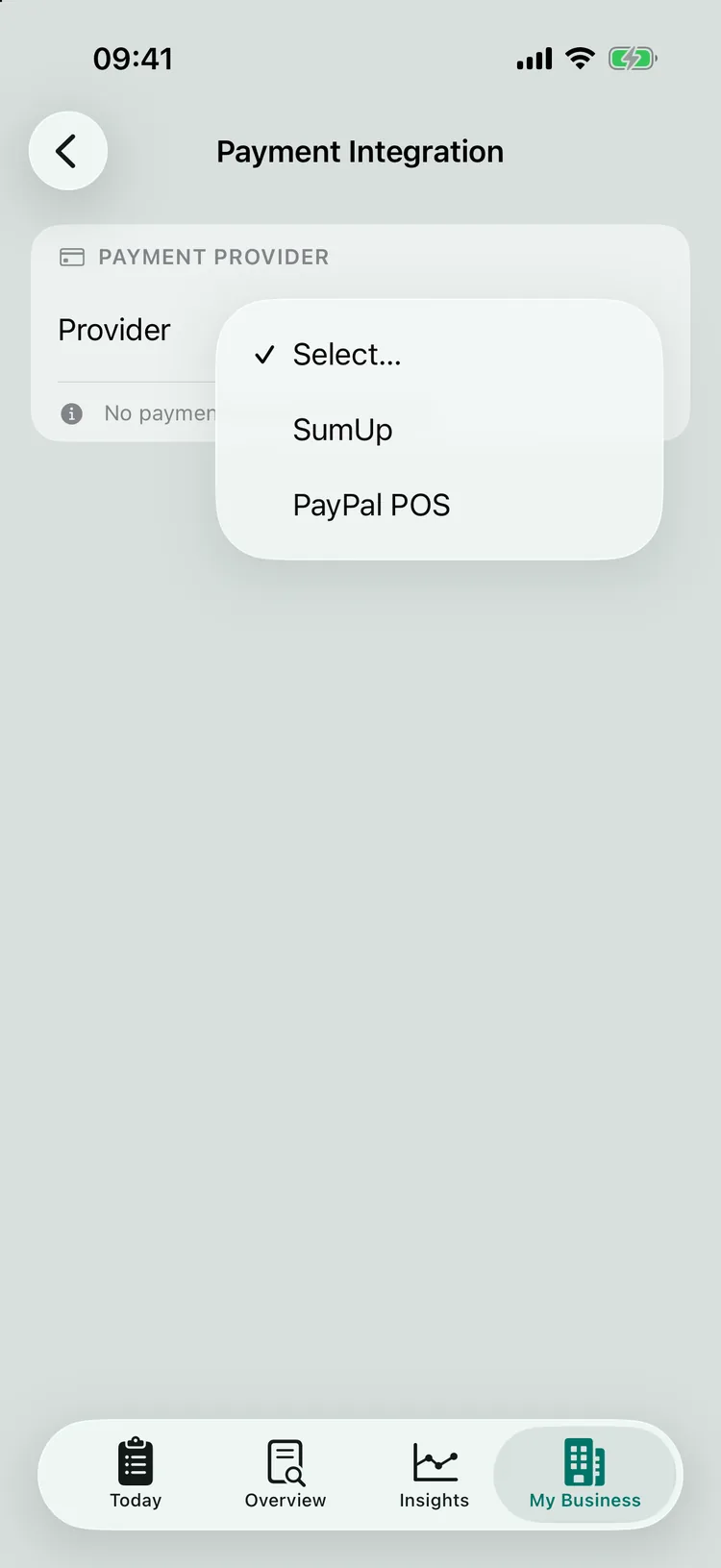
At the top you’ll see the Payment Provider card. Provider still says Select…. Tap it and choose SumUp.
Under Payment Provider, you choose SumUp as your provider.
Step 2
Choose SumUp and log in
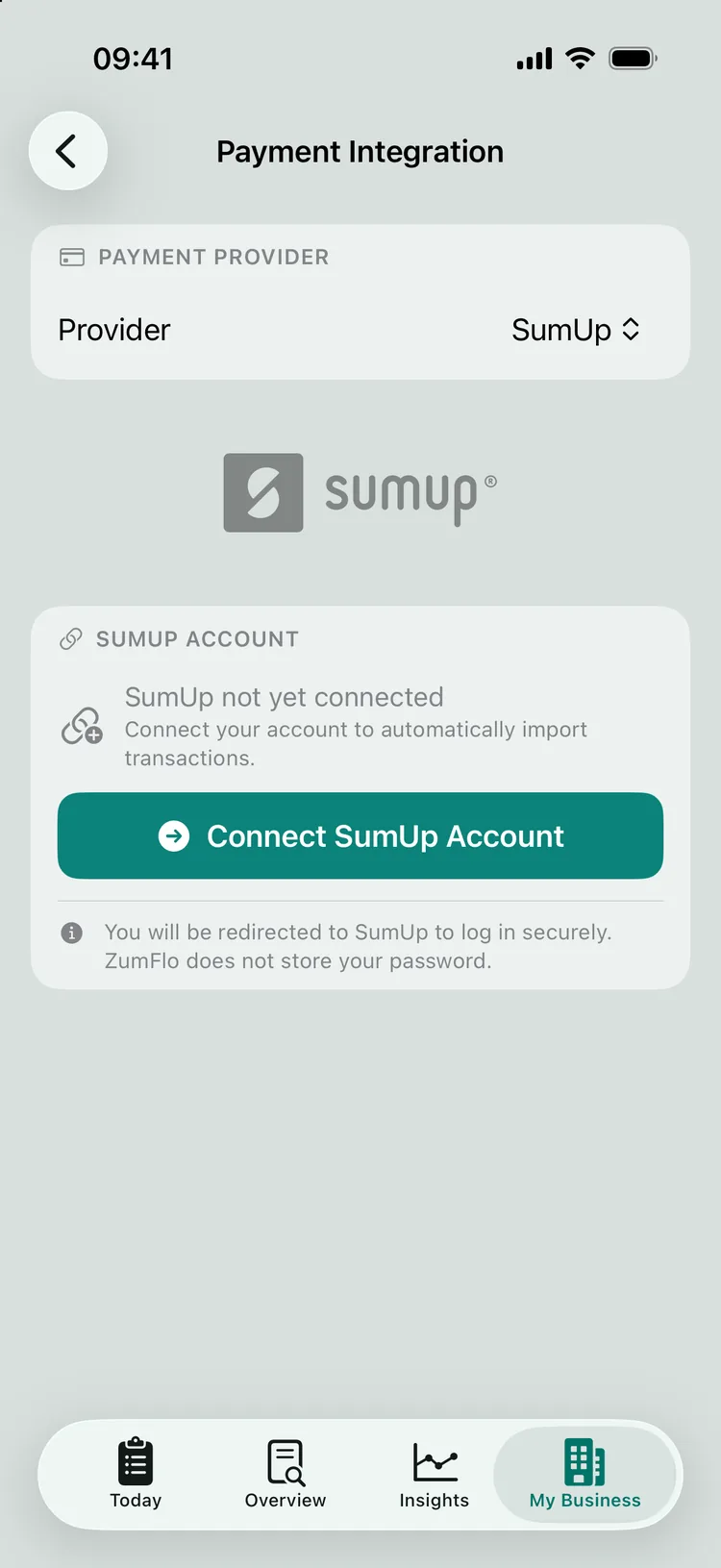
Once SumUp is selected, the card for your SumUp account appears with the Connect SumUp Account button. Tap it. A secure browser window opens inside the app with SumUp’s login page. There you log in with your SumUp details and give ZumFlo permission. The login uses a secure connection (OAuth): you type your password at SumUp itself, and ZumFlo never sees it. Then you’re back in ZumFlo.
What ZumFlo can - and can’t - do. ZumFlo only asks for read access: your transaction history and your account profile (read-only), so it’s clear which account is connected. Through the connection, ZumFlo can’t make payments, can’t start refunds and can’t change anything in your SumUp account.
With Connect SumUp Account you log in at SumUp itself; ZumFlo doesn’t store your password.
Step 3
Connected: what you see
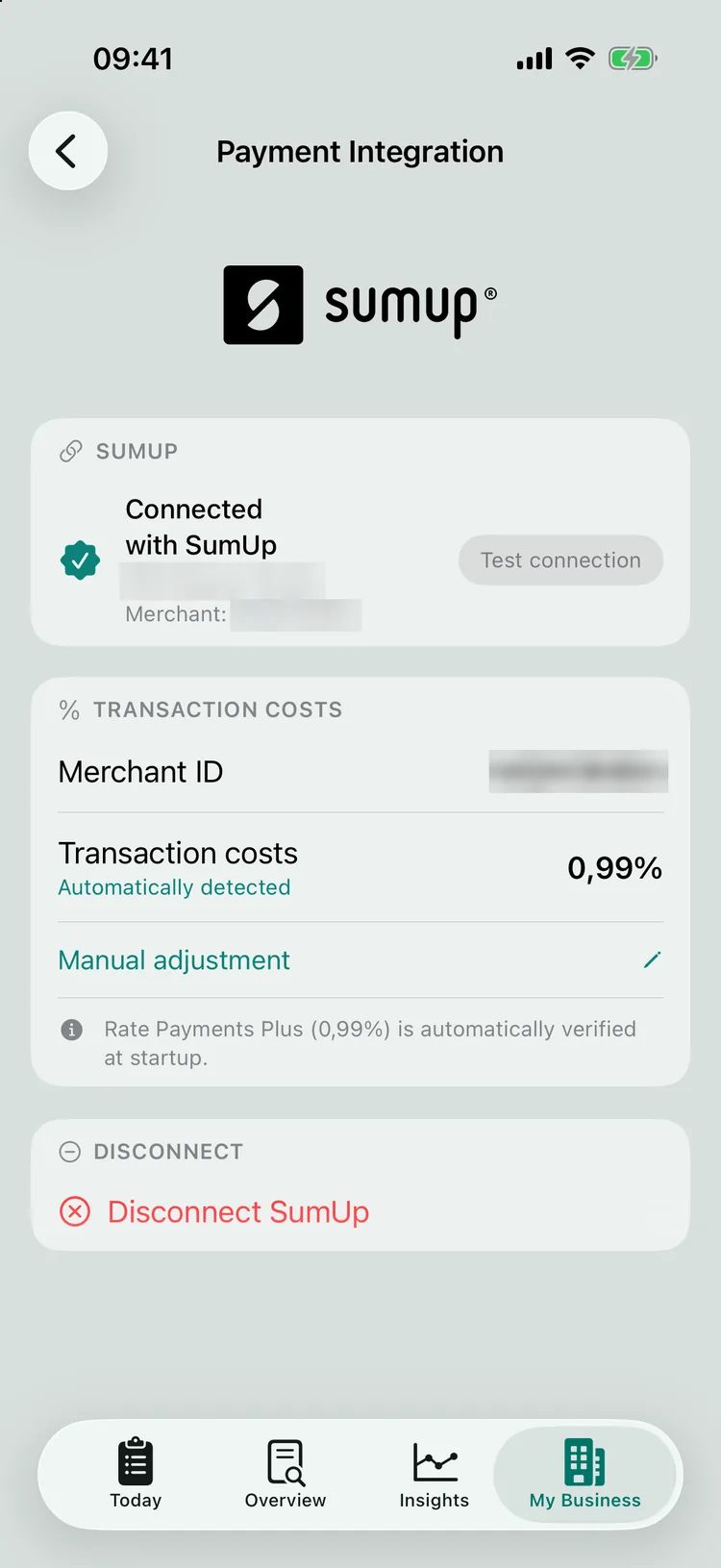
After logging in you’ll see Connected with SumUp, with the business name from your SumUp account and your merchant code (Merchant: …) below it. With Test connection you can check at any time that the connection still works.
If the name in your SumUp account differs from the name in your ZumFlo profile, ZumFlo tells you. That way you can see straight away whether you’ve connected the right account - for example if you ever created a second SumUp account.
Below that is the Transaction costs card: the percentage SumUp charges per card payment. You can read how that works below, under transaction fees.
Once connected you see Connected with SumUp, with Test connection and your transaction costs. The business name and merchant code have been made unreadable.
Step 4
Your card payments in Today
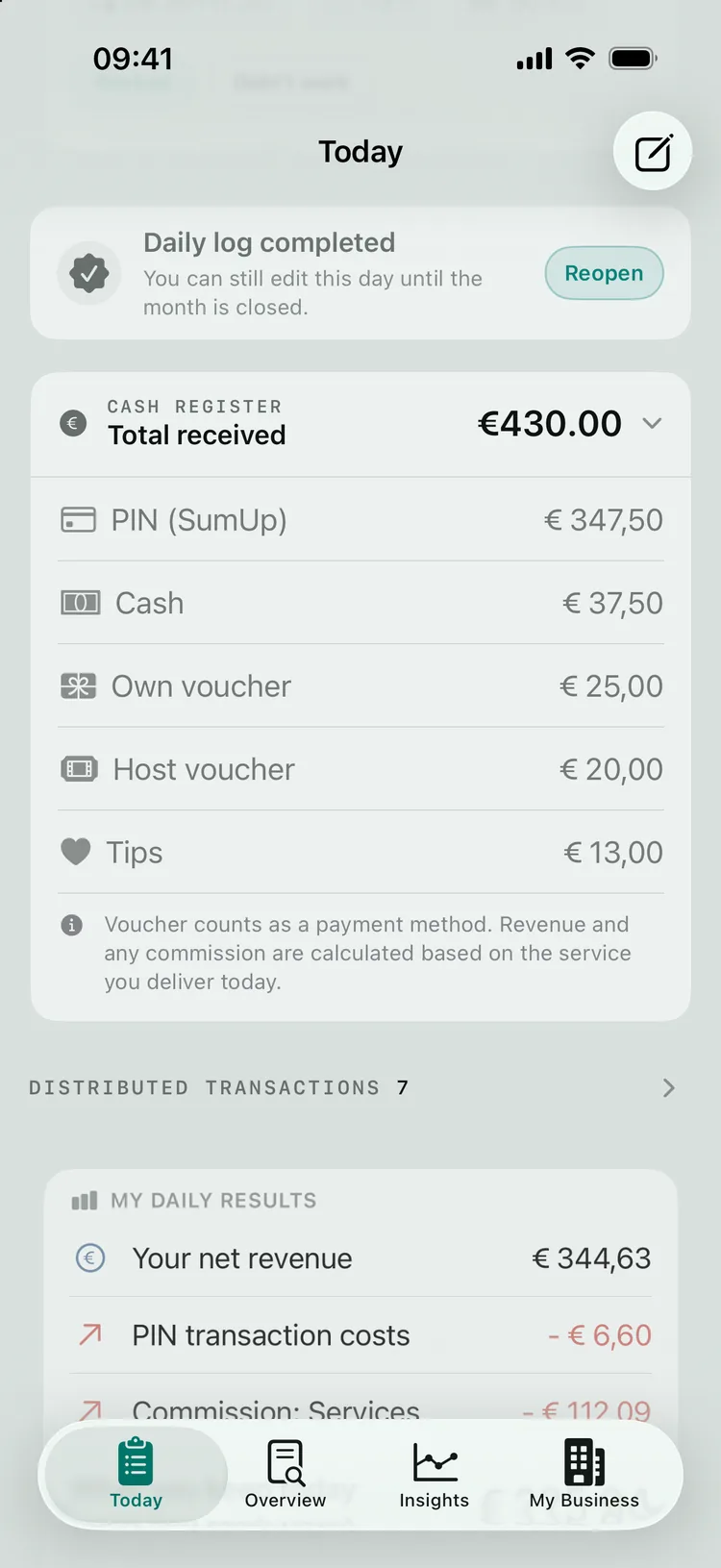
From now on, your card payments appear in Today by themselves. In the CASH REGISTER you’ll find them as PIN (SumUp), alongside cash, vouchers and tips. Each payment comes in with amount, time, card type and the tip your client added on the terminal. ZumFlo places each one on the right workday based on its time.
Your SumUp payments add up in the CASH REGISTER as PIN (SumUp); your tips are listed separately.
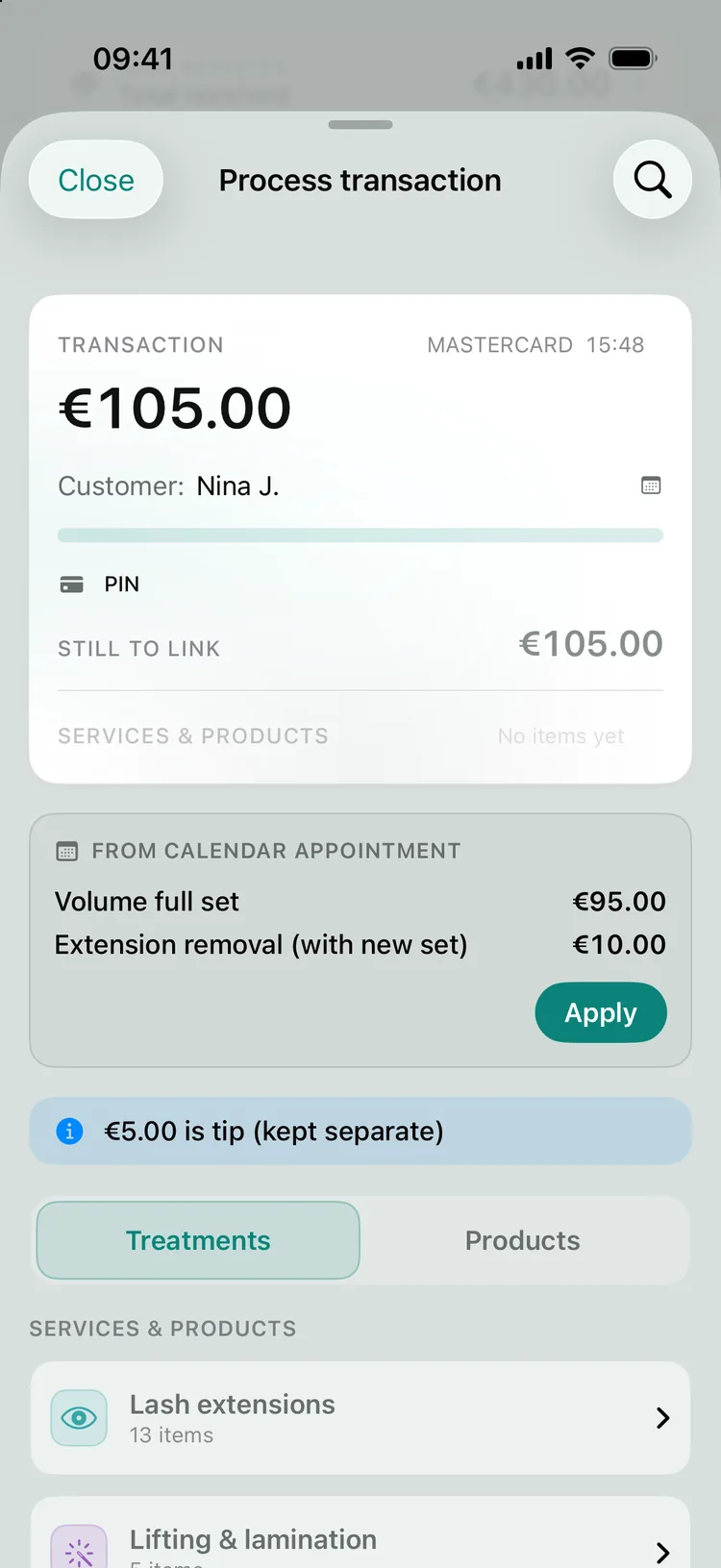
From payment to service. New payments first appear under Open transactions. For each payment you choose which services and products were in it; it then moves to Distributed transactions. With the calendar connection (Pro), ZumFlo already has the suggestion from your appointment ready, matched on time and amount - then you confirm with a single swipe.
Did a client pay partly by card and partly in cash? Then you distribute the payment: you link the card amount to the service and the remainder to cash. How that works exactly is explained step by step in getting started.
A card payment with card type and time: the suggestion from your calendar is ready, and the tip has already been kept separate.
Tips are set aside automatically. ZumFlo recognises which payment included a tip and sets it aside automatically: 0% BTW (Dutch VAT), outside your revenue and outside the settlement with your host. What’s left is the amount for your services.
Working at more than one location in a day? If ZumFlo then can’t assign a payment to a location with certainty, you’ll see a message under Unallocated transactions such as “1 PIN transaction (€45.00) is awaiting a location.” Expand the message, tap the payment and choose the location it belongs to.
Costs
Transaction fees
SumUp charges a percentage in transaction fees on every card payment. Those are your costs as a self-employed professional. ZumFlo keeps them separate from the settlement with your host and never includes them in your host payment ratio - that ratio only covers chair rent, commission and other settlement items, always excluding BTW. In your daily results you’ll see them as PIN transaction costs.
After connecting, ZumFlo tries to detect your rate automatically from your transaction history. If that doesn’t work (yet), for example because there are only a few transactions so far, you’ll see an Estimated rate. With Manual adjustment you set your rate yourself. If you change the percentage, you choose whether it applies From today or Include current month. If the actual percentage later differs from your setting, ZumFlo lets you know.
Using the Moneybird connection? Then your transaction fees get a separate journal entry when you post your month. That page also explains how to reconcile SumUp’s daily payout - minus the transaction fees - in your bookkeeping.
PayPal POS
Using PayPal POS?
You connect PayPal POS (formerly Zettle) in exactly the same way. Follow the same route to Payment integration, choose PayPal POS as the provider and tap Connect PayPal POS Account. Here too, you log in with the provider itself and ZumFlo only asks for read access: your purchases and your finance transactions.
After that, everything works as described on this page: your card payments and tips come into your CASH REGISTER, you link them to your services, and your transaction fees stay separate.
Privacy
Disconnecting and privacy
Your password stays with SumUp. You log in on SumUp’s own login page; ZumFlo never sees your password. After you log in, ZumFlo only receives an access key, which is stored in the iOS Keychain on your own device.
You can disconnect at any time. Open Payment integration and tap Disconnect SumUp at the bottom. ZumFlo checks once more: “Are you sure you want to disconnect SumUp? You can reconnect it later.” Once you confirm, ZumFlo removes the access keys from your device and stops fetching new transactions. You can also revoke access in your SumUp account, under connected apps.
FAQ
Frequently asked questions about the SumUp connection
Can ZumFlo make payments or refunds through SumUp?
No. ZumFlo only asks for read access: your transaction history and your account profile (read-only). ZumFlo can’t make payments, start refunds or change anything in your SumUp account.
Does ZumFlo see my SumUp password?
No. You log in on SumUp’s own login page, in a secure window inside the app. ZumFlo then only receives an access key, which is stored in the iOS Keychain on your device.
Do tips that come in through SumUp count as revenue?
No. ZumFlo recognises the tip your client added on the terminal and sets it aside automatically: 0% BTW, outside your revenue and outside the settlement with your host.
Are SumUp’s transaction fees part of what I pay my host?
No. Transaction fees are your own costs. ZumFlo keeps them separate from the settlement with your host and never includes them in your host payment ratio. With the Moneybird connection they get their own journal entry.
Do I need ZumFlo Pro for the SumUp connection?
No. The connection with SumUp and PayPal POS is included in both Standard and Pro. Only automatically matching payments to your calendar appointments is part of Pro.
Your card payments, in the right place by themselves.
Connect SumUp once, and from then on your card payments and tips appear in your daily log by themselves - ready to link to your services.
The SumUp connection is included in ZumFlo Standard and Pro, and works the same way with PayPal POS.