Connecting Moneybird and posting your month

Your month is closed and it adds up. Now you want it neatly in your bookkeeping - without retyping everything. With the Moneybird connection, your closed settlement flows straight into your accounts: revenue per BTW rate, your payment methods and your costs, each in the right place.

The Moneybird connection is the bridge between your day-to-day work in ZumFlo and your bookkeeping. You record your working days, close your month, and then have the closed settlement posted with a few taps. Your accountant gets a correct, itemised entry instead of a stack of PDFs to retype - saving time, mistakes and costs.

Connecting and posting are part of ZumFlo Pro. You set up the connection once; after that, posting takes just a few taps a month. This page walks you through the whole route: the preparation, connecting via the wizard, posting, and what you then do in Moneybird itself to wrap everything up.

Not ready for Moneybird yet? Then start with month-end closing - posting to Moneybird is the optional final step there.

Prepare your Moneybird administration

Before you connect, it helps to get your administration ready so the connection can find everything. One distinction is crucial here - it’s exactly where people get confused:

A ledger account (grootboekrekening) determines where something is posted: your revenue, your chair rent, your commission, transaction fees, tips. A financial account (financiële rekening) - an interim account - shows how the money flows: your card interim account, an interim account for vouchers, your cash. They are two different things, in two different places. Mix them up and the entry won’t add up.

What you create yourself: the financial interim accounts for your payment methods. The wizard asks for four: one for card payments via SumUp, one for vouchers & credits, your cash (a cash book) and one for manual PIN - card payments outside your provider. You create them in Moneybird under Settings → Bank → Add → Add account without linking; the wizard shows the type and name to choose for each one. Moneybird doesn’t let an app create these accounts itself - that’s why this is the only part you do by hand. They hold the money that comes in through a payment method until it reaches its final destination.

What the wizard does for you: you don’t need to look up the twelve ledger accounts ZumFlo uses - service revenue (21% and 9%), sales commission, tips, chair rent, commission costs, transaction fees, and on the balance sheet the interim accounts for cash and vouchers, third-party funds, payments received in advance and the account for invoices still to be received. The wizard recognises them by their RGS code, and creates a missing account itself. This is the ideal moment to check in with your accountant if you have doubts about your chart of accounts.

Check your details in ZumFlo: before you can connect, ZumFlo checks that your business profile (business name, address, KVK and BTW numbers, IBAN and email) and the contact details of each host (contact person, address, email and phone number) are complete. That’s because the wizard records your hosts as contacts in Moneybird. Use a real email address: Moneybird rejects addresses whose domain doesn’t exist.

Connect Moneybird and go through the wizard

You start the connection in ZumFlo from My Business → Settings (the gear icon) → Integrations → Accounting software → Accounting software → Connect with Moneybird. It uses a secure connection (OAuth): you log in to Moneybird and give ZumFlo permission - ZumFlo never sees your password. Then the wizard starts.

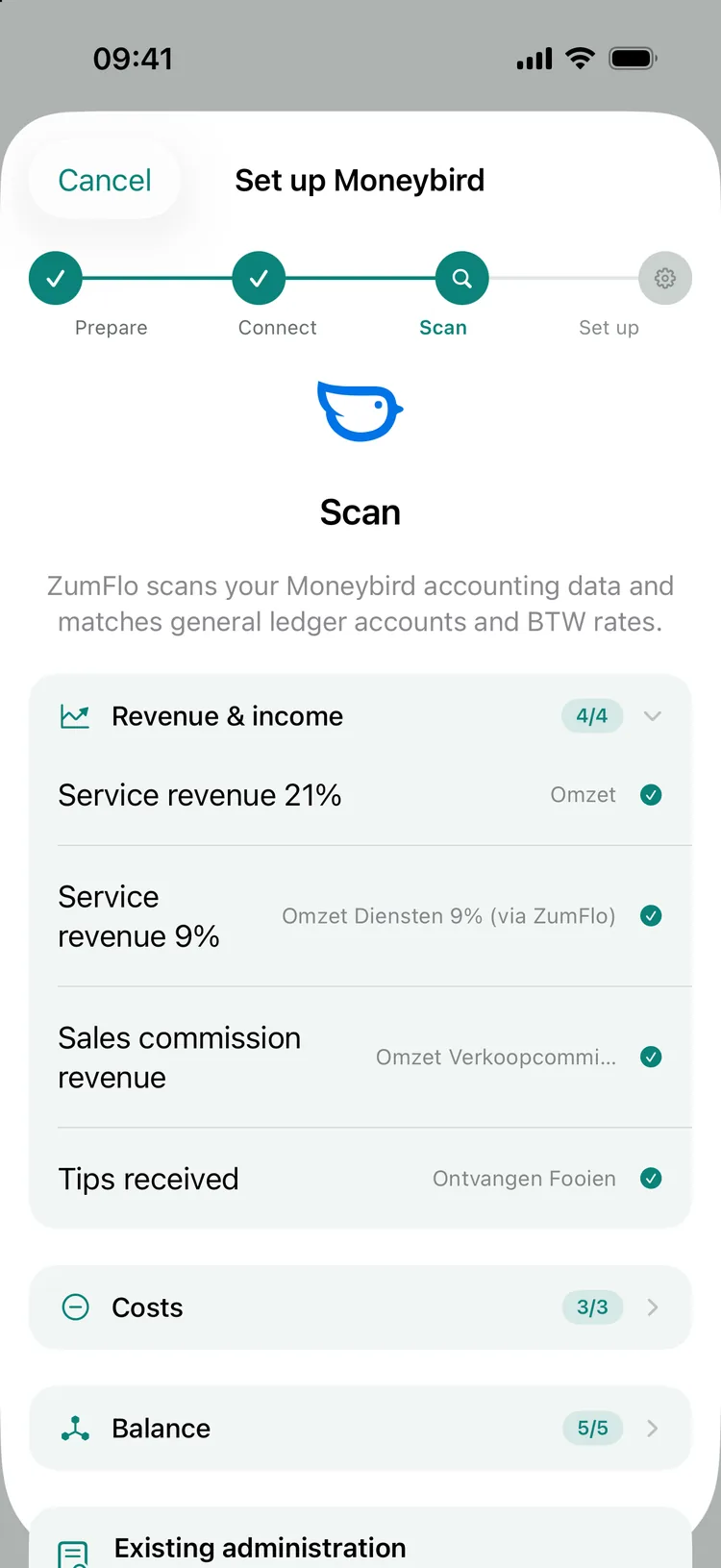
The wizard has four steps. Prepare lists the four accounts from step 1. In Connect you confirm which Moneybird account belongs to each payment method; recognised accounts are already filled in. In Scan the wizard matches your ledger accounts by their RGS code to the roles ZumFlo needs, in three groups: Revenue & income, Costs and Balance. It also looks up your BTW rates (21%, 9% and 0%). Anything it can’t find is marked Will be created. Tap Connect everything and the wizard moves on to Set up: it creates the missing accounts, records your hosts as contacts and saves the mapping. On the left you see the role in ZumFlo, on the right the matching account from your Moneybird administration - in a Dutch administration those account names are in Dutch.

Take your time to check the mapping carefully once - this is the foundation. If you later want to use a different account, you pick it on the Accounting software screen under Mapping. If it’s right, you won’t need to look at it again.

The Set up Moneybird wizard at the Scan step: under Revenue & income, Service revenue 21%, Service revenue 9%, Sales commission revenue and Tips received are each matched to an account in Moneybird (4/4), with Costs 3/3 and Balance 5/5.
In the Scan step the wizard matches your ledger accounts per group; anything missing, it creates itself.

Post your closed month

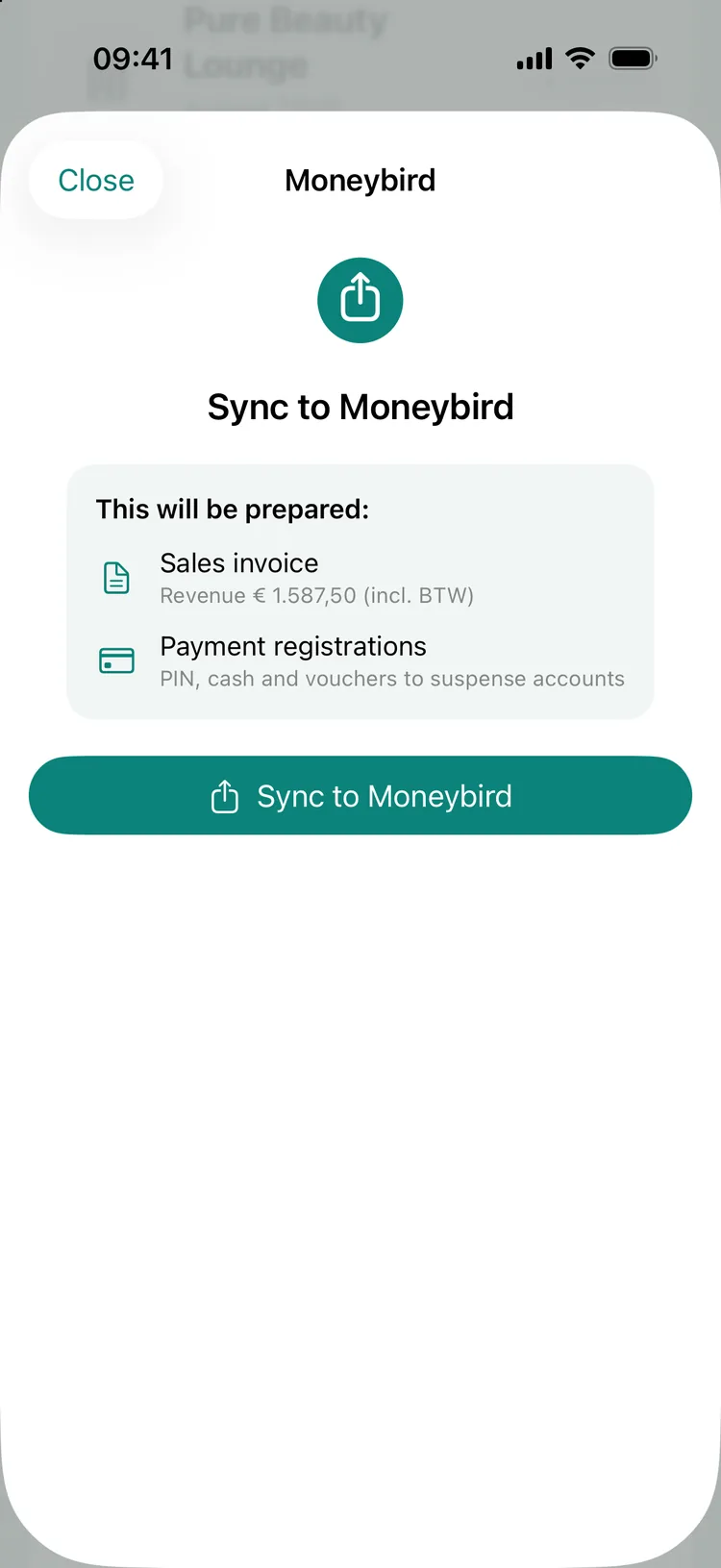
As soon as a month is closed and locked, you can post it. Open the month in Overview, tap the host under Host Overview and expand step 5 of the settlement, Sync to Moneybird. Sync with Moneybird shows what will be prepared; tap Sync to Moneybird and ZumFlo builds a complete, balanced set of entries in Moneybird. In plain language, this is what happens:

A sales invoice for your revenue, neatly split per BTW (Dutch VAT) rate (21%, 9% and 0% where applicable). That split per rate is exactly what your BTW return needs. By default, your tips appear as a separate line at 0% BTW - their own income without BTW, separate from your taxable revenue.

Your payment methods are recorded the way the money actually came in: card, manual PIN, cash and voucher, each through its own interim account. That way, what was received matches what was invoiced.

Your costs and income with the host - chair rent, commission and what you receive from your host - are processed as a journal entry (memoriaalboeking). Third-party funds (your host’s products that you sell on) go to their own balance-sheet account, because they aren’t your revenue. The costs you still expect your host to invoice go onto a balance-sheet account for invoices still to be received. That is the bridge to the final step. Your transaction fees (from SumUp, for example) get a separate journal entry.

You don’t need to worry about double posting: the connection first checks whether the settlement has already been posted, and prevents duplicate invoices. So you simply post a month once. Afterwards, step 5 shows when it was synced, with an Open in Moneybird button - you or your accountant can open the entry and check it before the return goes out.

The Sync to Moneybird screen for a locked month: This will be prepared - Sales invoice with revenue € 1.587,50 (incl. BTW) and Payment registrations for PIN, cash and vouchers to suspense accounts, with the Sync to Moneybird button below.
Before posting you see what ZumFlo prepares; one tap on Sync to Moneybird does the rest.

Reconcile with your host’s purchase invoice

There is one more step you do in Moneybird itself, and it makes your administration fully balanced. After closing, your host sends you a purchase invoice for the chair rent and commission. ZumFlo has already posted those costs in advance to the balance-sheet account “invoices still to be received”. Once the actual purchase invoice arrives, you book it in Moneybird and reconcile it (afletteren) against that balance-sheet account.

This cancels the provision against the actual invoice and brings the balance of that account neatly back to zero. Your ledger is correct, the BTW on your purchases (input BTW) is in the right place, and the month is fully wrapped up in your books. Want to know more about BTW on your purchases? Read tracking receipts and invoices.

How your money flows: card, cash and the interim accounts

The connection posts this automatically, but it helps to understand what happens behind the scenes - this is exactly where the distinction from step 1 becomes concrete: a ledger account determines where something is posted, a financial account (interim account) shows how the money flows. An interim account always bridges the moment between “the client pays” and “the money is in your bank account”.

Card payments via SumUp or PayPal POS

When a client pays by card, that money doesn’t go straight to your bank account; it first stays with your provider. SumUp bundles a day’s payments and usually pays them out once a day as a single amount to your business account - minus the transaction fees. So on your bank statement you don’t see ten separate card payments, but one net credit.

In your bookkeeping it works like this: every card payment is revenue (ledger), with the card interim account as the contra entry - it builds up during the day with what your clients paid by card. When the daily payout lands in your bank account, you reconcile it against that same interim account. The difference between the gross daily revenue and the net credit is exactly the transaction fees, which you post to the transaction fees ledger account. After that, the interim account is back at zero and the whole chain adds up: client, provider, bank.

That is precisely why the interim account exists: it keeps the difference in timing and amount visible, instead of revenue and bank credits getting mixed up. The connection prepares these entries for you; reconciling the bank credit is something you do in Moneybird itself, just like with your host’s purchase invoice.

Cash: simply revenue - and what you do with it

This is separate from ZumFlo, but just as important for your administration. Cash you receive is full revenue. For tax and bookkeeping purposes it counts in full - including BTW and, through your profit, income tax - exactly like a card payment. There is no grey area: not recording cash revenue is not allowed, and a real risk in an audit. So the right and safe habit is: record every cash payment on the day itself.

In your books, cash gets its own financial account: Cash (Kas). You post every cash payment as revenue with Cash as the contra entry, so your cash balance grows with what you physically have in hand. In ZumFlo you record this by entering cash as the payment method in your daily log; when you post, it lands on that Cash account.

And don’t leave the money itself sitting in a drawer indefinitely: deposit it into your business account periodically, and reconcile that deposit against Cash - that way every euro can be traced from receipt to bank, and your cash balance matches reality. Keep business and private strictly separate: don’t pay private expenses directly from the cash, but take money out as a private withdrawal and post that separately. A muddled cash account is a classic reason why the books won’t balance at the end of the year.

Finally, the retention obligation: you keep your cash records and the underlying documents - like the rest of your administration - for seven years. If you’re unsure how best to handle cash in your situation, run it past your accountant; that short conversation saves a lot of digging later.
Good to know

The connection is deliberately built to be cautious. It only posts what you choose to post for a closed month, checks for duplicate invoices, and locks the mapping after the first successful sync, so you can’t accidentally pull your chart of accounts out from under a posted month (you can still change it through Edit mapping, with an extra confirmation). If you switch later or want to start over, you can disconnect Moneybird; your entries in Moneybird simply stay where they are. If you reconnect, you go through the wizard again.

The connection is a tool that prepares your administration - not a replacement for your accountant. Final responsibility for your tax return and your administration remains with you, and your accountant is the right person to take a look if you’re in doubt.

Frequently asked questions about the Moneybird connection

A ledger account determines where something is posted (for example revenue, chair rent or transaction fees). A financial account - an interim account - shows how the money flows (for example your card interim account or cash). ZumFlo uses both, and it’s important not to confuse them: they belong in different places in the connection.

The ledger accounts, yes: the wizard scans them, matches them by their RGS code and creates a missing account itself. If you want a different account, you pick it afterwards in the mapping. You create the four financial interim accounts (card payments, manual PIN, vouchers & credits and cash) yourself in Moneybird before you connect - Moneybird doesn't let an app do that.

No. The connection first checks whether a settlement has already been posted and prevents duplicate invoices. You post a closed month once.

You can do it without, but the one-time preparation and checking the mapping are easiest to do together with your accountant. After that, posting takes just a few taps a month.

Cash is full revenue: you record it (in ZumFlo as the cash payment method), it counts towards your BTW and your income tax, and you deposit it into your business account periodically. In your books it runs through your Cash (Kas) account, which you reconcile against those deposits. Keep business and private money separate and keep your cash records for seven years.

From a closed month to books that balance.

Set up the connection properly once, and from then on let your closed settlement flow into your administration with a few taps - itemised and ready for your accountant.

The Moneybird connection is part of ZumFlo Pro and posts your revenue, payment methods and costs neatly in the right place.

Download on the App Store
© 2026 Sub37 Labs. All rights reserved. Use of this text without permission is not permitted.